Basic Linux Commands For DevOps
👋 Hi, I’m Huzefa Ahmed, and I’m starting my DevOps engineering journey! 🚀 I’m passionate about AWS DevOps and aim to land a full-time role in this field.
As I dive into cloud technologies, automation, and continuous integration, I’ll share my progress, insights, and challenges. Let’s connect, learn, and grow as a DevOps community!
Follow my journey on Hashnode and LinkedIn as I work towards securing a job in DevOps!
LinkedIn: https://www.linkedin.com/in/huzefa-ahmed-15720b278/
What is Linux?
Linux is an open-source operating system. An operating system is the software that directly manages a system's hardware and resources, like CPU, memory, and storage. The OS sits between applications and hardware and makes the connections between all of your software and the physical resources that do the work.
Architecture of Linux
The architecture of the Linux system is a layered structure that comprises several components, each with a specific function.
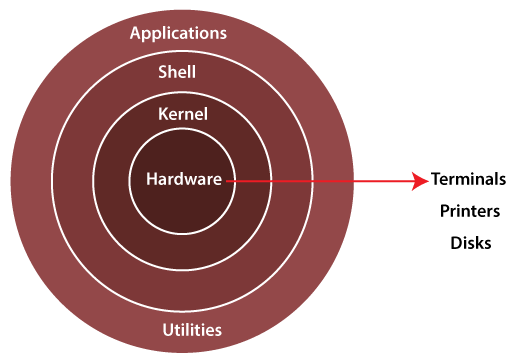
The main components of the Linux operating system are:
Application: This is the topmost layer of the Linux architecture and consists of the various applications that run on top of the operating system and interact with its components.
Shell: The shell is a command-line interface that allows users to interact with the system through a set of commands.
Kernel: The kernel is the central component of the Linux operating system architecture. It manages system resources and provides services to applications and processes running on the system.
Hardware: This is the bottommost layer of the Linux architecture and represents the physical hardware components of the computer, such as the processor, memory, and storage. The hardware layer is responsible for interacting with the various hardware devices and providing access to them for the rest of the operating system.
➡Basic Linux Commands
1. File and Directory Management:
pwd: Displays the current working directory.- Example:
pwd
- Example:
ls: Lists files and directories.- Example:
ls -l
- Example:
cd: Changes directory.- Example:
cd /path/to/directory
- Example:
mkdir: Creates a new directory.- Example:
mkdir new_folder
- Example:
rm: Removes files or directories.- Example:
rm filenameorrm -r directory_name
- Example:
rmdir: Removes an empty directory.- Example:
rmdir empty_directory
- Example:
cp: Copies files or directories.- Example:
cp source_file destination_directory
- Example:
mv: Moves or renames files or directories.- Example:
mv oldname newname
- Example:
touch: Creates a new empty file.- Example:
touch newfile.txt
- Example:
ln: Creates a hard link to a file.- Example:
ln file link
- Example:
ln -s: Creates a symbolic (soft) link to a file or directory.- Example:
ln -s /path/to/file link
- Example:
2. File Viewing and Editing:
cat: Displays file content.- Example:
cat filename
- Example:
zcat: Displays the content of compressed files without uncompressing them.- Example:
zcat file.gz
- Example:
head: Displays the first few lines of a file.- Example:
head filename
- Example:
tail: Displays the last few lines of a file.- Example:
tail filename
- Example:
more: Views file content one screen at a time.- Example:
more filename
- Example:
wc: Counts words, lines, and characters in a file.- Example:
wc filename
- Example:
cut: Cuts parts of a line or file by delimiter.- Example:
cut -d ' ' -f 1 filename
- Example:
sort: Sorts the content of a file.- Example:
sort filename
- Example:
diff: Compares the content of two files line by line.- Example:
diff file1 file2
- Example:
3. Process Management:
ps: Displays running processes.- Example:
ps aux
- Example:
top: Displays real-time system resource usage.- Example:
top
- Example:
kill: Terminates a process by its PID.- Example:
kill 1234
- Example:
nohup: Runs a command immune to hangups.- Example:
nohup command &
- Example:
vmstat: Displays system performance statistics.- Example:
vmstat
- Example:
fuser: Identifies processes using a file or socket.- Example:
fuser filename
- Example:
4. System Information:
uname: Displays system information.- Example:
uname -a
- Example:
uptime: Shows system uptime.- Example:
uptime
- Example:
free: Displays memory usage.- Example:
free -h
- Example:
date: Displays or sets the system date and time.- Example:
date
- Example:
who: Displays who is logged into the system.- Example:
who
- Example:
whoami: Displays the current user.- Example:
whoami
- Example:
id: Displays user ID and group information.- Example:
id
- Example:
which: Locates the executable path of a command.- Example:
which command
- Example:
hostname: Shows or sets the system's hostname.- Example:
hostname
- Example:
watch: Runs a command repeatedly, showing output changes over time.- Example:
watch df -h
- Example:
5. User and Permission Management:
useradd: Creates a new user.- Example:
sudo useradd username
- Example:
su: Switches to another user account.- Example:
su username
- Example:
userdel: Deletes a user.- Example:
sudo userdel username
- Example:
groupadd: Creates a new group.- Example:
sudo groupadd groupname
- Example:
gpasswd: Administers group memberships.- Example:
sudo gpasswd -a username groupname
- Example:
umask: Shows or sets the default file creation permissions.- Example:
umask
- Example:
chmod: Changes file permissions.- Example:
chmod 755 filename
- Example:
chown: Changes file ownership.- Example:
chown user:group filename
- Example:
chgrp: Changes group ownership of a file.- Example:
chgrp groupname filename
- Example:
6. Networking Commands:
ssh: Connects to a remote server via SSH.- Example:
ssh user@hostname
- Example:
scp: Securely copies files between hosts.- Example:
scp file user@hostname:/path
- Example:
rsync: Syncs files between directories or hosts.- Example:
rsync -av source destination
- Example:
traceroute: Traces the route packets take to a network host.- Example:
traceroutegoogle.com
- Example:
tracepath: Similar to traceroute but requires no superuser privileges.- Example:
tracepathgoogle.com
- Example:
mtr: Combines traceroute and ping.- Example:
mtrgoogle.com
- Example:
nslookup: Queries DNS for domain name information.- Example:
nslookupexample.com
- Example:
telnet: Connects to remote hosts via the Telnet protocol.- Example:
telnet hostname
- Example:
ip: Shows or manipulates IP addresses and routing.- Example:
ip addr show
- Example:
iwconfig: Configures wireless network interfaces.- Example:
iwconfig
- Example:
ss: Displays socket statistics.- Example:
ss -tuln
- Example:
dig: Queries DNS information.- Example:
digexample.com
- Example:
whois: Queries information about domains.- Example:
whoisexample.com
- Example:
nc: Netcat command for sending data across the network.- Example:
nc -l 12345
- Example:
arp: Displays or modifies the ARP table.- Example:
arp -a
- Example:
ifplugstatus: Checks network cable status.- Example:
ifplugstatus
- Example:
iptables: Configures IP packet filter rules.- Example:
sudo iptables -L
- Example:
7. Archiving and Compression:
zip: Compresses files into a ZIP archive.- Example:
ziparchive.zipfile
- Example:
unzip: Extracts files from a ZIP archive.- Example:
unziparchive.zip
- Example:
tar: Archives files into tarballs.- Example:
tar -cvf archive.tar file_or_directory
- Example:
8. Shutdown and Reboot:
sudo shutdown: Shuts down the system.- Example:
sudo shutdown -h now
- Example:
sudo reboot: Reboots the system.- Example:
sudo reboot
- Example:
9. Miscellaneous:
cat /etc/passwd: Displays system user information.- Example:
cat /etc/passwd
- Example:
route: Shows or manipulates the IP routing table.- Example:
route -n
- Example:
nmap: Scans networks for open ports and services.- Example:
nmap 192.168.1.1
- Example: